
Organise
Notes
Keep the story behind each playlist and host — what you changed, what to check, what to do next — with to-dos that remind you on time.
What it's for
"Which address worked last week?" "When did I ask for a renewal?" Notes keeps those answers next to the playlist they belong to, instead of in a chat you'll never find again.
How it works
There are two kinds of entry. A Note holds formatted text, a status (Open, Active, Watching, Resolved or Won't fix), a priority and a paper style. A To-do adds subtasks and a due date with a reminder. Tag either one with a Playlist, a Host or a tag of your own, then filter the list by All, Note or To Do.
Step by step
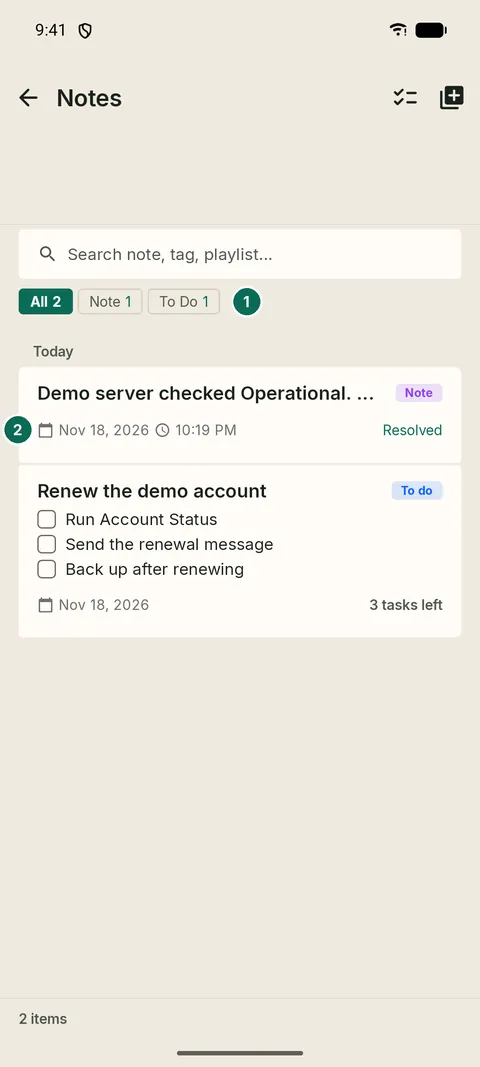
- 1All, Note or To Do
- 2Tags, status and due date on each entry
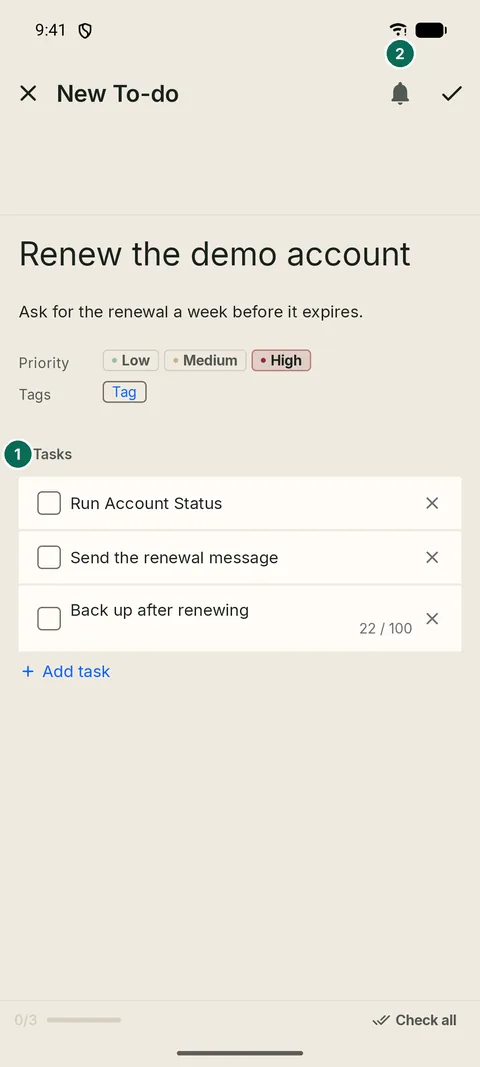
- 1Tasks you can tick off
- 2Due date & reminder